Mastering The Art Of Formatting Dates In Excel

John Johnson
Published Feb 05, 2026
Are you struggling to format dates in Excel? Whether you are a novice or an experienced Excel user, dealing with date formats can be tricky. However, mastering the art of formatting dates in Excel is essential for creating professional-looking spreadsheets and making your data more readable. In this guide, we will explore the various date formatting options available in Excel and provide you with the tools you need to effectively format dates in your spreadsheets.
Excel offers a wide range of date formats to choose from, allowing you to display dates in the way that best suits your needs. From simple date formats like "MM/DD/YYYY" to more complex formats that include the day of the week or month name, Excel provides flexibility in how dates are displayed. By understanding how to apply these formats, you can ensure that your dates are presented correctly and clearly in your spreadsheets.
Formatting dates in Excel is not just about making your data look good – it also plays a crucial role in data analysis and interpretation. By formatting dates correctly, you can perform date-based calculations, sorting, and filtering more effectively. Whether you are working on a project timeline, tracking sales data, or analyzing trends over time, having well-formatted dates will make your Excel sheets more functional and user-friendly.
Why is Date Formatting Important in Excel?
Date formatting is important in Excel for several reasons:
Ensuring Data Accuracy
Properly formatted dates help prevent errors in data entry and ensure that dates are interpreted correctly by Excel.
Enhancing Readability
Well-formatted dates make it easier for users to understand and interpret the information presented in a spreadsheet.
How to Format Dates in Excel
Formatting dates in Excel is a simple process that can be done in just a few steps:
1. Select the cells containing the dates that you want to format.
2. Right-click on the selected cells and choose "Format Cells" from the context menu.
3. In the Format Cells dialog box, select the desired date format from the list of options.
4. Click "OK" to apply the selected date format to the cells.
Common Date Formatting Options in Excel
Some common date formatting options in Excel include:
Short Date
- Displays the date in a short format, such as "MM/DD/YYYY".
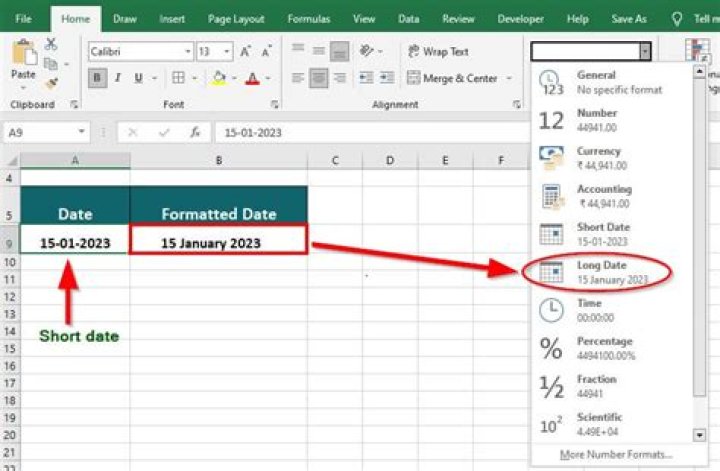
Long Date
- Displays the date in a long format, including the day of the week and month name.
Custom Date Format
- Allows you to create a custom date format based on your specific requirements.
Conclusion
Mastering the art of formatting dates in Excel is essential for creating professional-looking spreadsheets and improving data analysis. By understanding the various date formatting options available in Excel and how to apply them effectively, you can ensure that your dates are presented clearly and accurately in your spreadsheets. So, the next time you need to work with dates in Excel, remember to use the formatting tools at your disposal to make your data shine.
Discover Fun And Creative Scrap Wood Project Ideas Using 2 X 4s
Discovering The Longevity Of Dr. Martens Boots
Schedule 80 PVC Pipe: A Guide To Understanding Its Uses And Benefits
:max_bytes(150000):strip_icc()/excel-date-format-5bc474cf30454abc99c65c14f7fc4b23.png)
How to Use the Excel DATE Function
Excel Date Formatting / Date Formatting in MS Excel. Excel Tips & Tricks
/date-function-example-e60abfc348994855bbc30338e26b5cad.png)
How to Use the Excel DATE Function